Variables
Variables are how you pass data into your page. We'll explain the variety of ways you can use them.
Variable data and data-types
Variables are strings. There's no additional formatting of variables, so dates and numbers need to be passed through as the final string value you'd like in the page.
Do this
Don't do this
Values for variables are optional. Values that aren't provided are equivalent to empty strings.
Variable placement
Variables can be placed in:
- Text areas within Text blocks, including:
- Table cells
- 2-column layouts
- Accordion widget
- Text areas within Splash, Video, Embed, Quote and Accept blocks
- The link for Image, Video, Button and Map widgets
- The source for the Embed widget
At this time, variables cannot be placed in:
- Configuration areas for blocks, e.g.:
- Foldable block button text (default text is "show/hide" — though see the options)
- Custom Accept text for the Accept block
- Custom forms for the Accept block
- The link for Splash, Video and Embed blocks (however there's separate for the Splash block image or video)
- Within the product line items of a Quote block (use the instead)
- Accept button itself
- In place of an Accordion widget banner image
- The link for text links
- ROI calculator widget
Account Variables
Account variables are created and managed within Qwilr.
For each account variable, select the to get the API reference. The API reference is the key that should be used to specify the variable in the substitutions request object.
Variables for Buttons
Variables can be used to specify the destination URL for a button link in a page create request. We do not currently support account variables in the button text.
Your responsibilities:
- The supplied variable value is a valid URL
Variables for Images
Variables can be used for placing media within text areas. The inline image widget expects a string for the path of the image or video, either owned by you, or uploaded to our image library.
Your responsibilities:
- Ensure the image path is correct
- Ensure the image is publicly available to the Internet, so that people viewing your page can see the image
Variables for Videos
Variables can be used to determine which video is loaded into a video embed.
Your responsibilities:
- Ensure your video is on a supported video service — YouTube, Brightcove or Loom — and that this video is publicly available to the Internet, so that people viewing your page can see the video.
- For YouTube, Wistia and Brightcove, the video variable expects the URL from the embed code provided by the platform, not the entire blob of embed HTML
- Vimeo isn't supported: unfortunately, Vimeo don't provide embed code that includes a usable URL
Variables for Maps
Variables can be used to control the focus of the map widget. Using the "Share" and "Embed a map" option in Google Maps, copy the URL from within the embed HTML to use as the map link.
Repeating Variables
Repeating variables are a type of variable that can be used in conjunction with the Repeating Content widget and Repeating Table Rows in the Table widget. They allow for the rendering of an array of objects with multiple string properties. This results in a templated set of content that repeats within a block.
Repeating variables can have one or more "Item Properties". Within a repeating section of content, you can reference one repeating variable, along with its properties, and any number of non-repeating variables.
In the following examples we're rendering a repeating variable named contact, with two properties name and location. The content can be repeated any number of times based on the data provided for the contact variable, in the substitutions section of the API request.
Repeating Variables setup
The variables menu for the contact repeating variable looks something like this:
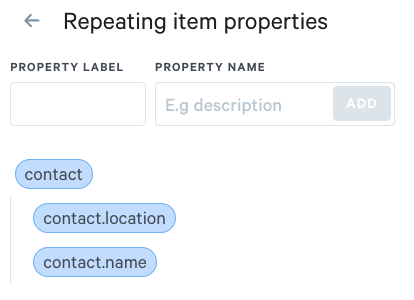
contact has two item properties: name and location. You can get the API reference of an item property by hovering and selecting .
Repeating Content widget
The diagram below illustrates how you go from a Repeating Content widget with contact selected, to what is rendered after an API request:
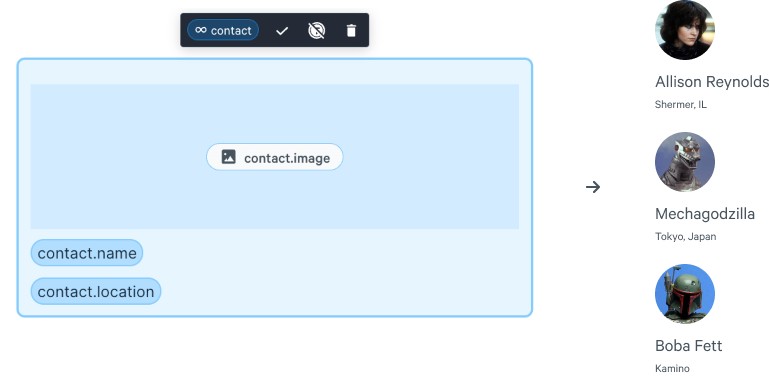
The Repeating Content widget also supports ordered and unordered lists.
Repeating Table Rows
Similar to the above example, you can select "Repeating Row" when adding new rows to a table widget and get something similar to the following:
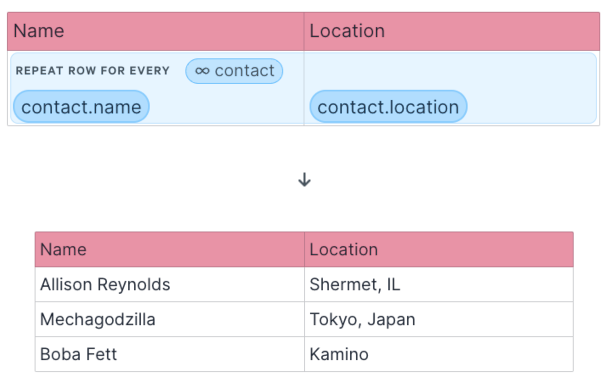
Sample request
The API request for the above examples would contain a substitutions section similar to:
Note on CRM Variables
CRM variables automatically map existing data in a CRM to variables in Qwilr. They're intended for creating Qwilr pages from within a CRM, such as SalesForce. The variables are created at the time of connecting a CRM integration to Qwilr and are generated from the CRM objects and modules supported by the integration.
Referencing CRM variables through the API is at present an experimental feature — please reach out to your Qwilr AE should you wish to base your API integration on CRM variables.